Nextcloud
Open-source platform for cloud storage and collaboration, secure file sharing, data synchronization, including vast library of applications.
Description
Nextcloud is an open-source cloud server and collaboration platform that allows users to securely store, share, and synchronize files across various devices. It offer extensive features such as document editing, calendar, contact management, mail client, etc. Designed for both individuals and organizations, Nextcloud provides full control over data, ensuring privacy.


Comparison
Alternative to: Google Drive and Google Docs, Google Calendar; Microsoft SharePoint and Microsoft Office 365; (partially also Dropbox)
✅ Full control over your data
✅ No extensive data collection and mining (its easier to meet GDPR and other regulatory and/or your company requirements)
✅ Highly customizable (vast library of applications that run inside the Nextcloud platform)
✅ Minimal technical knowledge needed (can be administrated from web interface; official Docker packages are available; BUT high responsibility to keep your data safe!)
✅ Android and iOS app available
❌High responsibility for security and backups (administrators must handle security updates, monitoring, and backups themselves)
Highlights
- Usage: ★★★★★
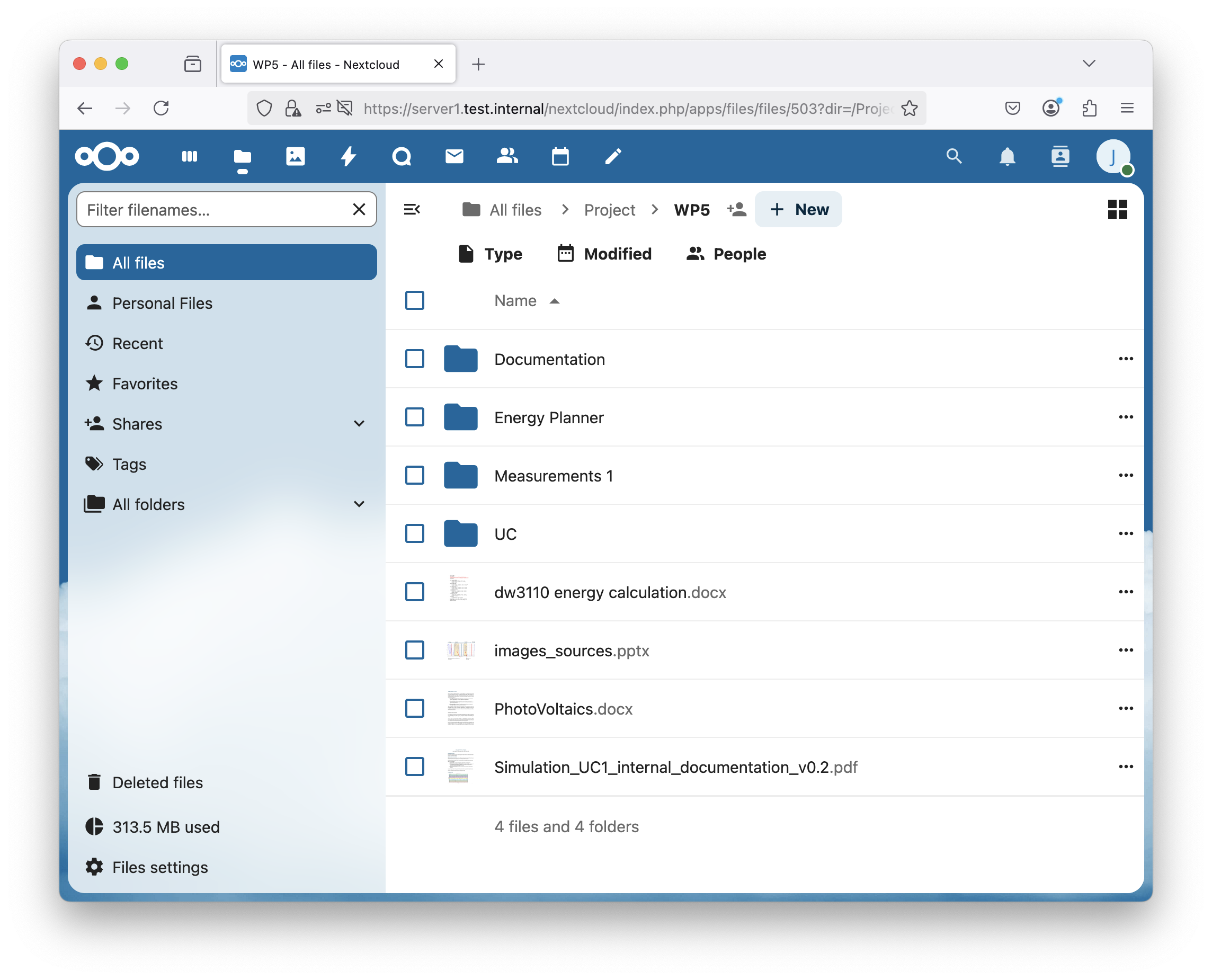
- The interface is user friendly and well prepared for those transitioning from Google Drive/Docs.
- A wide variety of applications can be installed directly from the web administration interface.
- Occasionally, I experienced slow response times (this could be an issue with my setup, but I doubt it; it significantly improved after installation of Redis server - also included in the Installation section).
- I encountered a problem with file locks preventing some files from being deleted. Setting up Redis immediately after installation (as suggested in the Installation section) resolved this issue.
- Web Interface: ★★★★★
- Very easy to use and intuitive, with drag and drop functionality wherever possible (or at least where I expected it).
- Excellent language localization.
- Mobile App: ★★★★★
- When connecting from a smartphone, the full server URL must be entered (e.g.,
https://<server_name>/nextcloudfor our installation guide). - Tested on Android, and it worked perfectly.
- The mobile app allows exceptions for self-signed certificates, which was useful during my test, as I installed on a private domain.
- Great language localization in the mobile app as well.
- When connecting from a smartphone, the full server URL must be entered (e.g.,
- Installation: ★★★★★
- I chose to install Nextcloud via the PHP installation script from Nextcloud's official site.
- The installation process was very fast and straightforward (please note, that it was a basic setup without PHP hardening on the server in place).
- The install script automatically detects missing PHP modules and provides a list of required dependencies (these are already included in the Installation and Practical Tips section).
- Fortunately, upgrading the system seems to be significantly less complicated than the initial installation.
Compatibility
| Server OS Compatibility | Linux (e.g., Debian, Ubuntu, CentOS, SUSE); MacOS; Windows (Docker supported) |
|---|---|
| Client Compatibility | Modern web browsers (Chrome, Firefox, Safari, Edge); Windows; Linux; MacOS; Android; iOS |
| Programming Language | PHP, JavaScript |
| Database | MySQL, MariaDB, PostgreSQL, SQLite |
| Web Server | Apache, Nginx |
| Dependencies | PHP (+ modules, plase see the install instructions), Redis (optionally) |
| License | GNU AFFERO GENERAL PUBLIC LICENSE (free and open-source) |
| Configuration | Web-based Interface, CLI |
| Community & Support | Active community; forums; GitHub; Enterprise Support available |
Installation and Practical Tips
Prerequisites
The installation is performed on a clean Debian 12 (netinstall) system.
Web Server & PHP Setup
apt -y install apache2 php libapache2-mod-php
a2enmod ssl
a2ensite default-ssl.conf
systemctl restart apache2
If deploying in a production environment, it is strongly recommended to use Certbot or a similar tool to obtain Let's Encrypt certificates.
MariaDB SQL Server Installation
apt install mariadb-server
mariadb-secure-installation
Run the command and change the root password. Answer "yes" to the security-related questions.
mariadb
And now run the following commands inside the MariaDB terminal:
create database nextcloud;
grant all privileges on nextcloud.* TO 'nextcloud'@'localhost' identified by '';
flush privileges;
Nextcloud Setup
apt -y install php-zip php-dom php-xml php-mbstring php-gd php-curl php-mysql
systemctl restart apache2
mkdir /var/www/html/nextcloud
cd /var/www/html/nextcloud
Edit the Apache configuration file:
nano /etc/apache2/sites-enabled/000-default.conf
Add the following before the last VirtualHost statement:
<Directory /var/www/html/nextcloud>
Options Indexes FollowSymLinks
AllowOverride All
Require all granted
</Directory>
Adjust PHP settings: 1) set the PHP memory limit to at least 512MB in /etc/php/8.2/apache2/php.ini (find the directive memory_limit). 2) Turn off output buffering by setting the directive output_buffering to Off in the same file.
systemctl restart apache2
wget "https://download.nextcloud.com/server/installer/setup-nextcloud.php"
chown www-data:www-data .
Navigate to https://<server_address>/nextcloud/setup-nextcloud.php in your browser.
Set the installation directory to ".". After installation, set your admin password and enter the database credentials from the previous MariaDB setup step.
For security reasons, it is highly recommended to set the data directory outside of the webroot:
mkdir /srv/nextcloud
chown www-data:www-data /srv/nextcloud
During the initial setup, specify /srv/nextcloud as the data folder.
Redis Installation (for Better Caching)
Setting up Redis proved important in my case, as I otherwise encountered file lock issues that prevented me from deleting files.
apt -y install redis php-redis
systemctl enable redis-server
systemctl start redis-server
Edit the Nextcloud configuration file:
nano /var/www/html/nextcloud/config/config.php
Add the following lines at the end:
'memcache.locking' => '\OC\Memcache\Redis',
'memcache.distributed' => '\OC\Memcache\Redis',
'memcache.local' => '\OC\Memcache\Redis',
'redis' => [
    'host' => '127.0.0.1',
    'port' => '6379',
    'dbindex' => 0,
    'timeout' => 1.5,
    'read_timeout' => 1.5,
]
Restart webserver to reload the changes:
systemctl restart apache2
References and Additional Info:
Other Details
Developer: Nextcloud GmbH, community